What you'll get
You will have a working project for one area of your work, with instructions and reference files, so you can stop pasting the same background into every chat.
What a project does
A project is a folder for your conversations with its own instructions and files. Every chat you start inside it can see those instructions and files, so you do not need to explain your job, your company or your preferences each time.
Think of it as the briefing you would give a new assistant on their first day, written once and kept on file.
Good candidates for a project are things you come back to again and again: a client, a regular report, a team you manage, or a side project.
Before you start
- Pick one area of your work to start with. You can add more projects later.
- Gather two or three documents you refer to often for that work, such as a brief, a style guide or last month’s report.
- Projects are available on most current plans for both tools. If you do not see them, check your plan in the tool’s settings.
Set it up
In Claude
Create the project
In the left hand sidebar, select Projects, then New project at the top right.
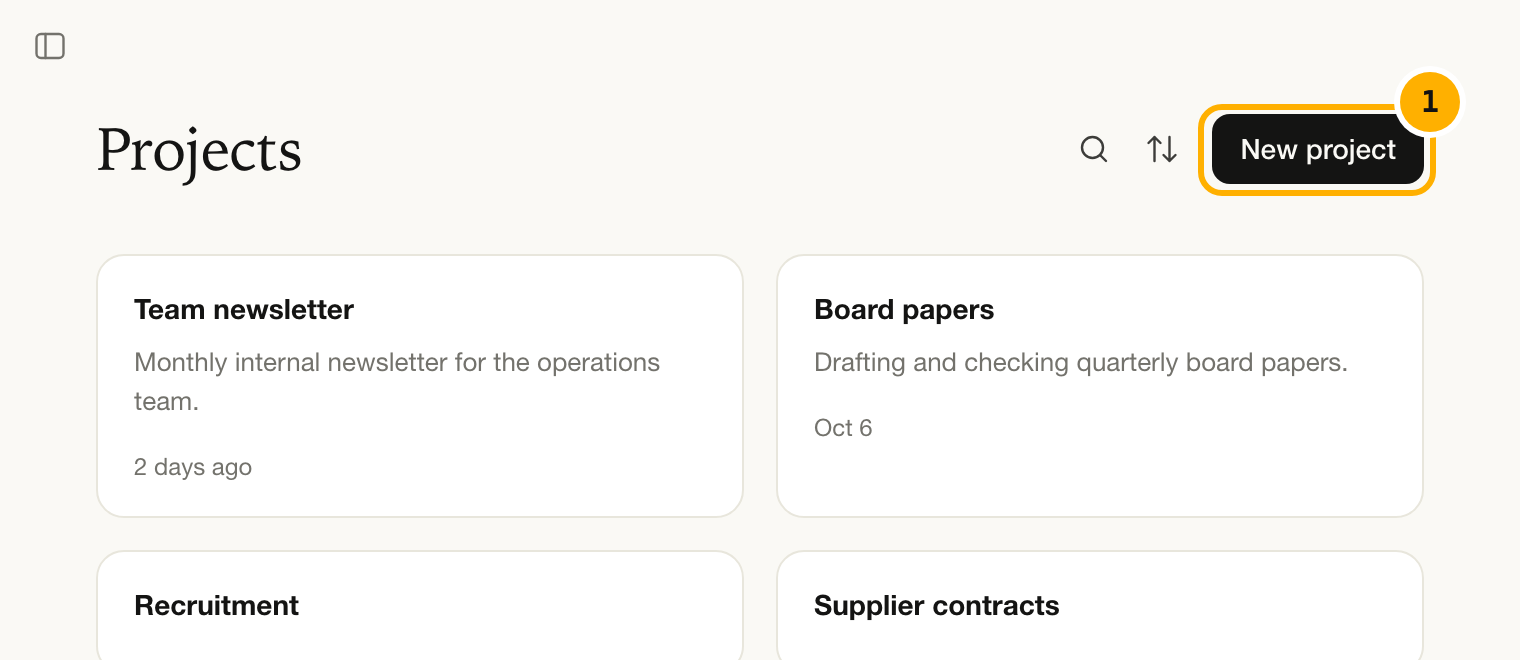
Illustration of Claude's interface, October 2026. Under What are you working on?, give the project a name you will recognise, such as “Monthly client reporting”. Under What are you trying to achieve?, add a one line description. Then select Create project.
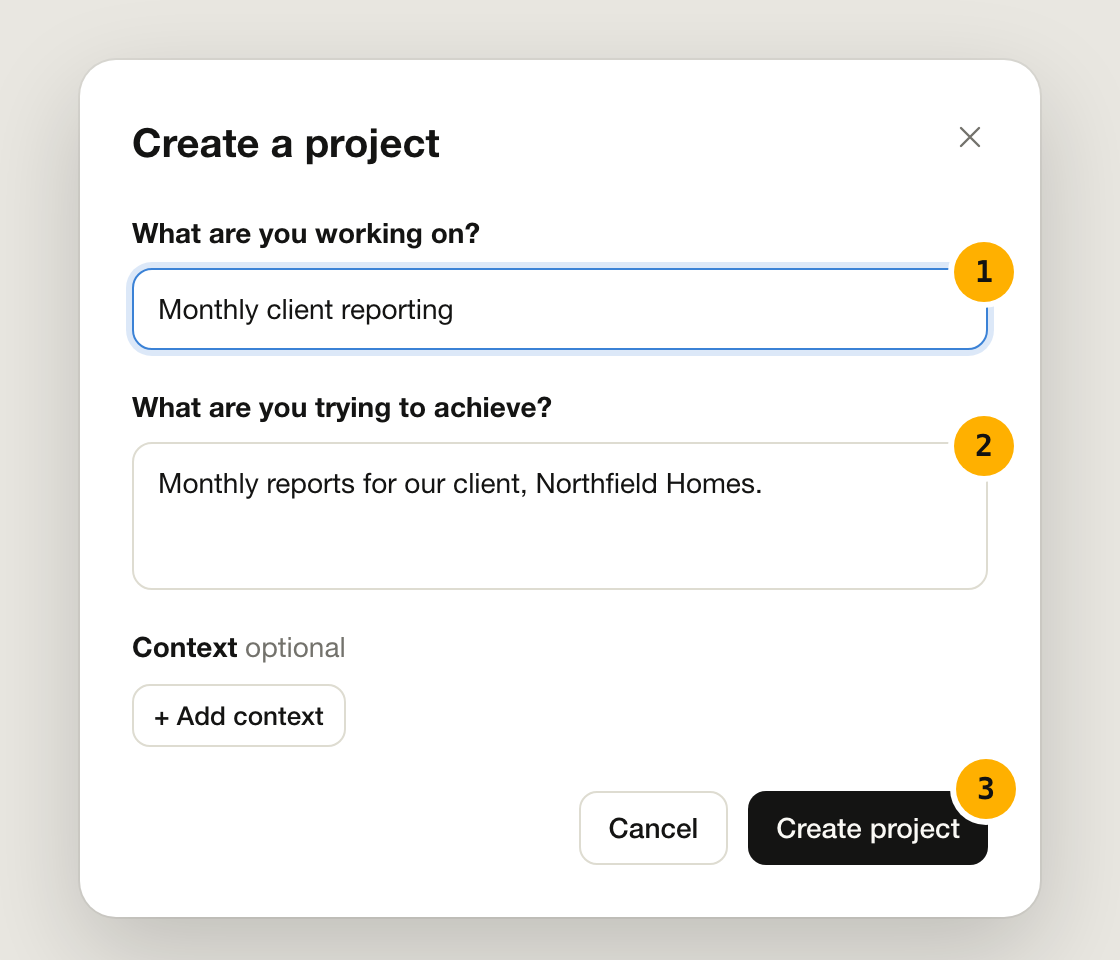
Illustration of Claude's interface, October 2026. Add your instructions
On the project page, find Instructions on the right and select Add.
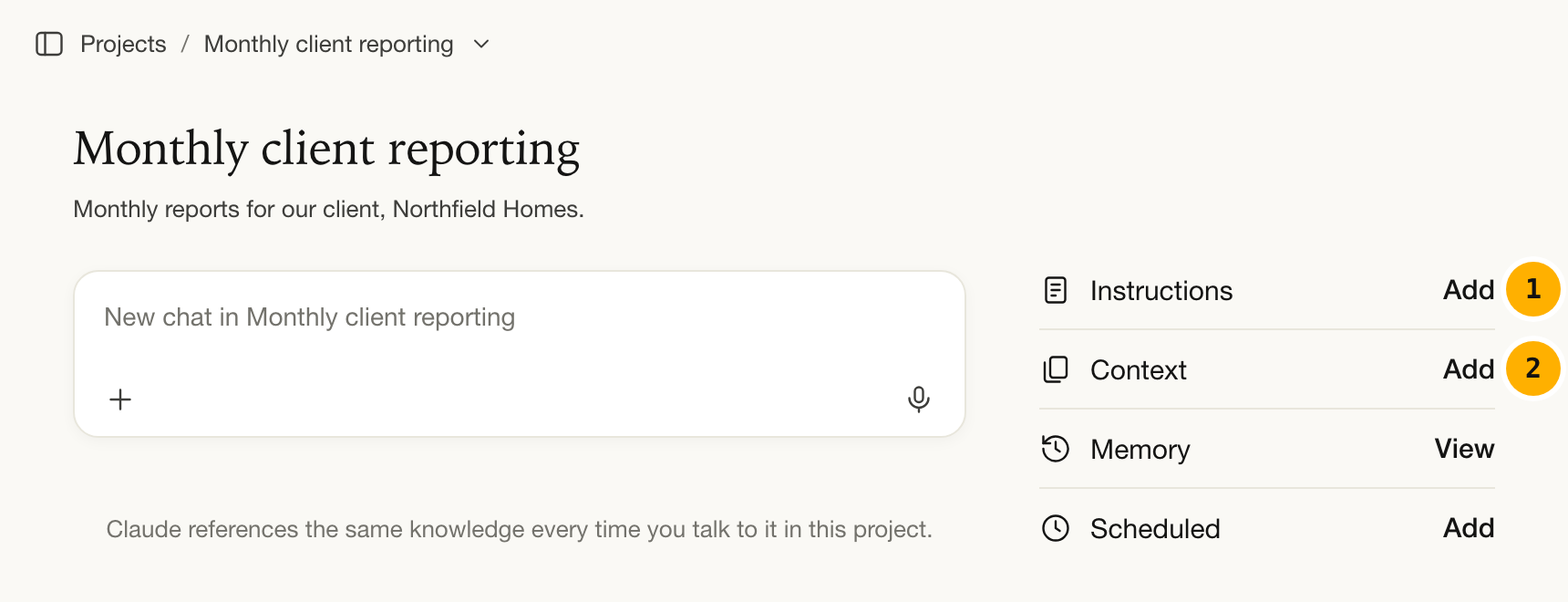
Illustration of Claude's interface, October 2026. Paste in a few short lines about who you are, what this project is for and how you like answers (there is an example below), then select Save instructions.
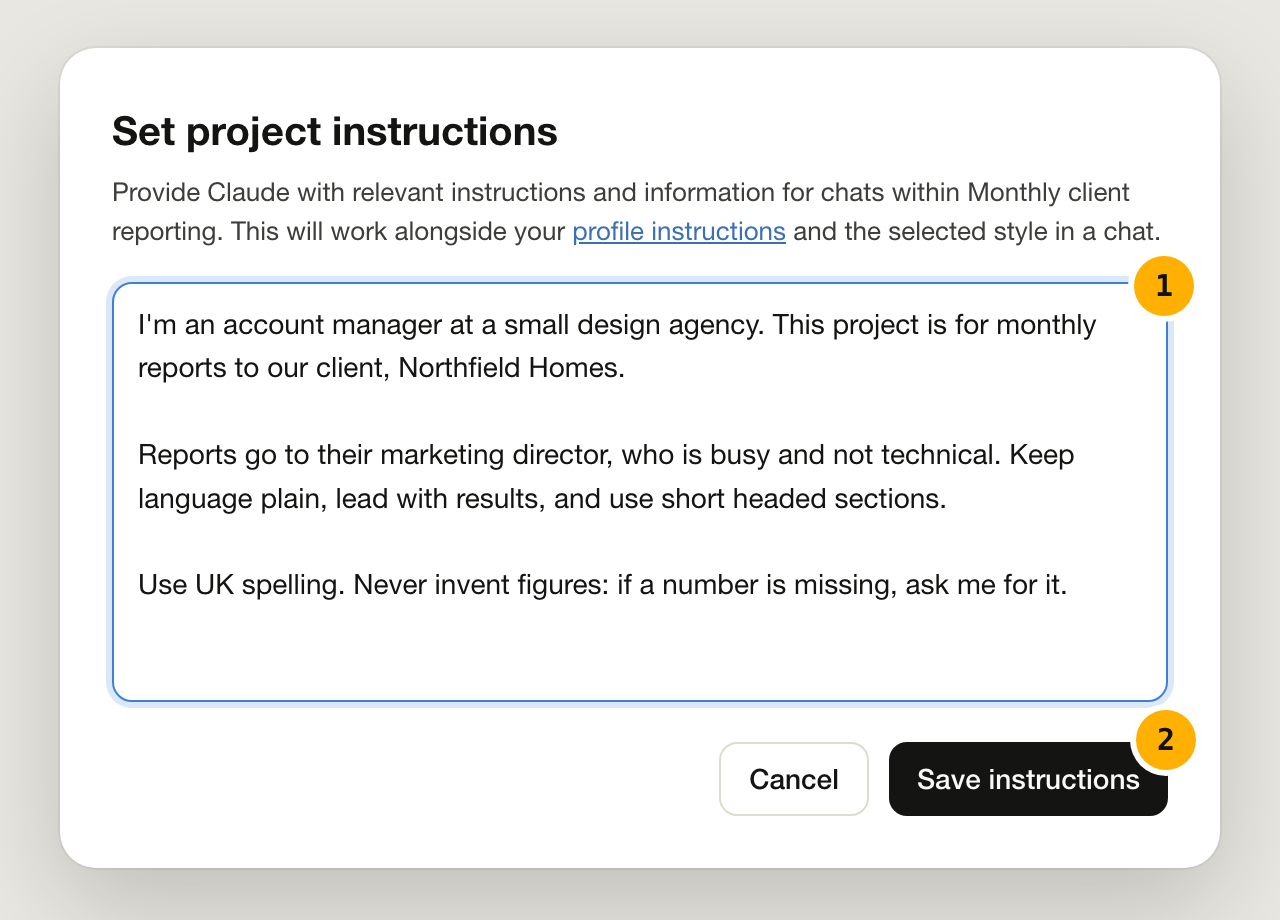
Illustration of Claude's interface, October 2026. Add your files
Next to Context, select Add and upload your documents. Claude can refer to them in any chat in this project.
Start a chat inside the project
Type in the box on the project page to start a chat in the project. Ask something that relies on the background, such as “Draft this month’s report intro using the usual structure”, and see how much less you need to explain.
In ChatGPT
Create the project
In the left hand sidebar, point at Projects and select the + that appears beside it.
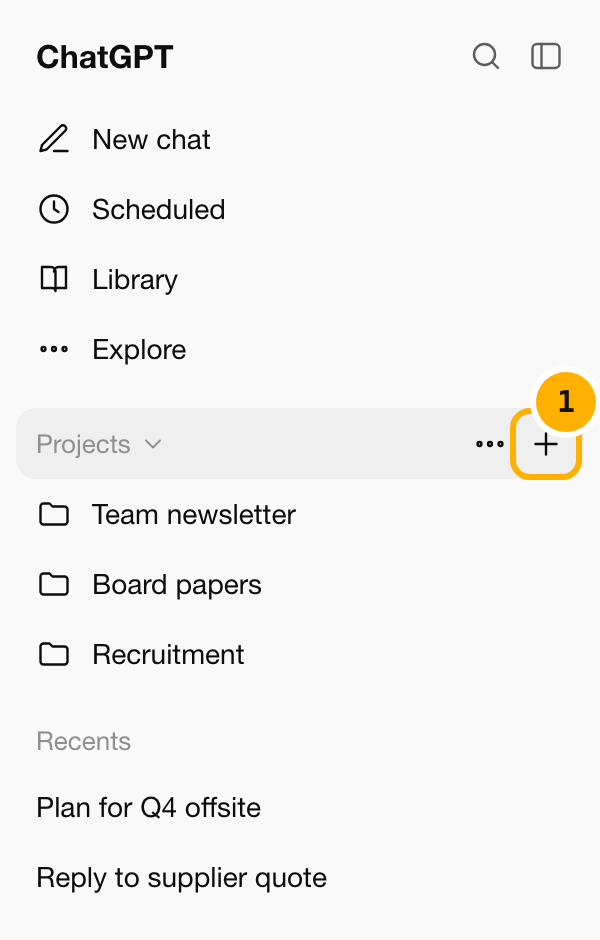
Illustration of ChatGPT's interface, October 2026. Give the project a clear name, such as “Monthly client reporting”, and select Create project.
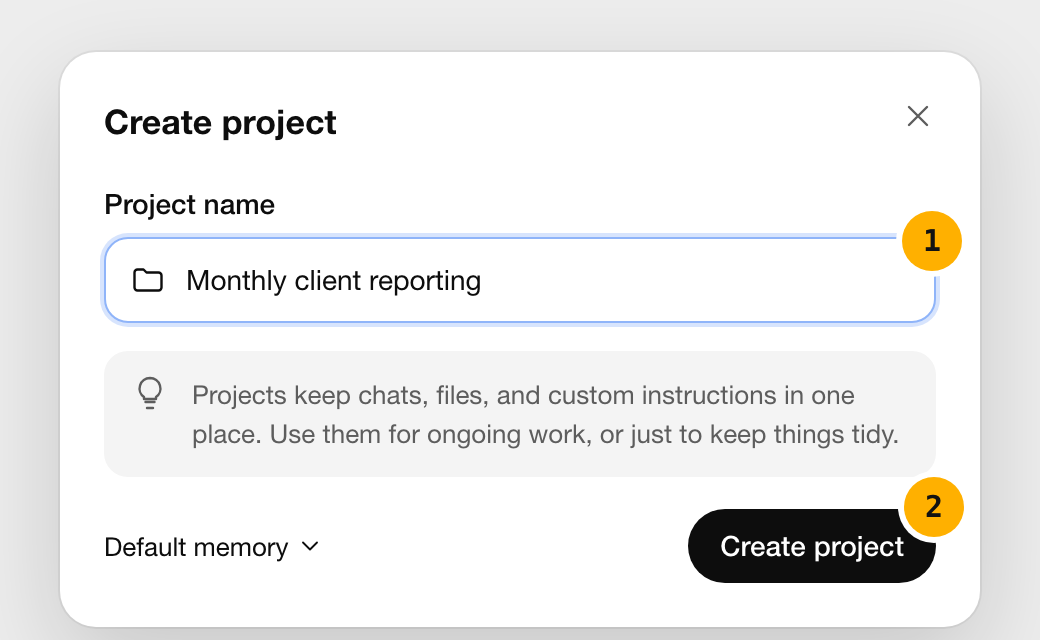
Illustration of ChatGPT's interface, October 2026. Add your instructions
On the project page, select the … button at the top right, then Project settings.
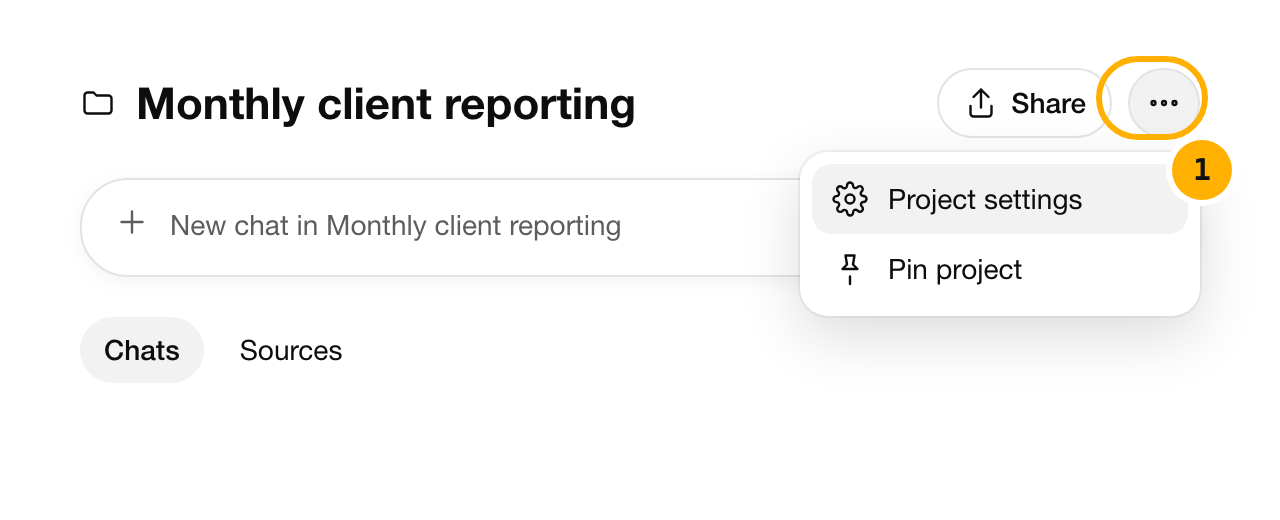
Illustration of ChatGPT's interface, October 2026. Paste a few short lines into Instructions (there is an example below), then select Save.
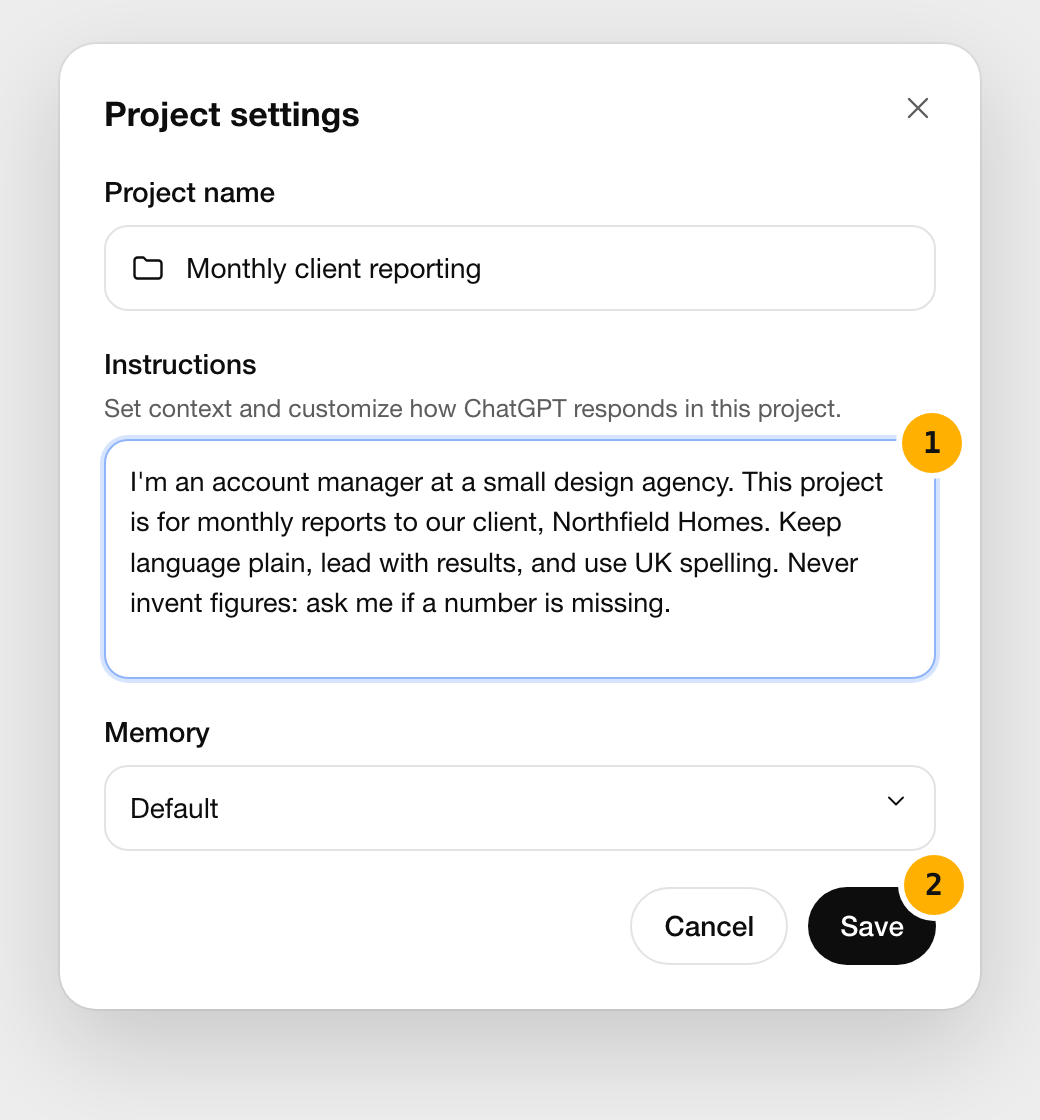
Illustration of ChatGPT's interface, October 2026. Add your files
On the project page, open the Sources tab and add your documents. ChatGPT can refer to them in any chat in this project.
Start a chat inside the project
Type in the box on the project page to start a chat in the project. Ask something that relies on the background, such as “Draft this month’s report intro using the usual structure”, and see how much less you need to explain.
What to put in the instructions
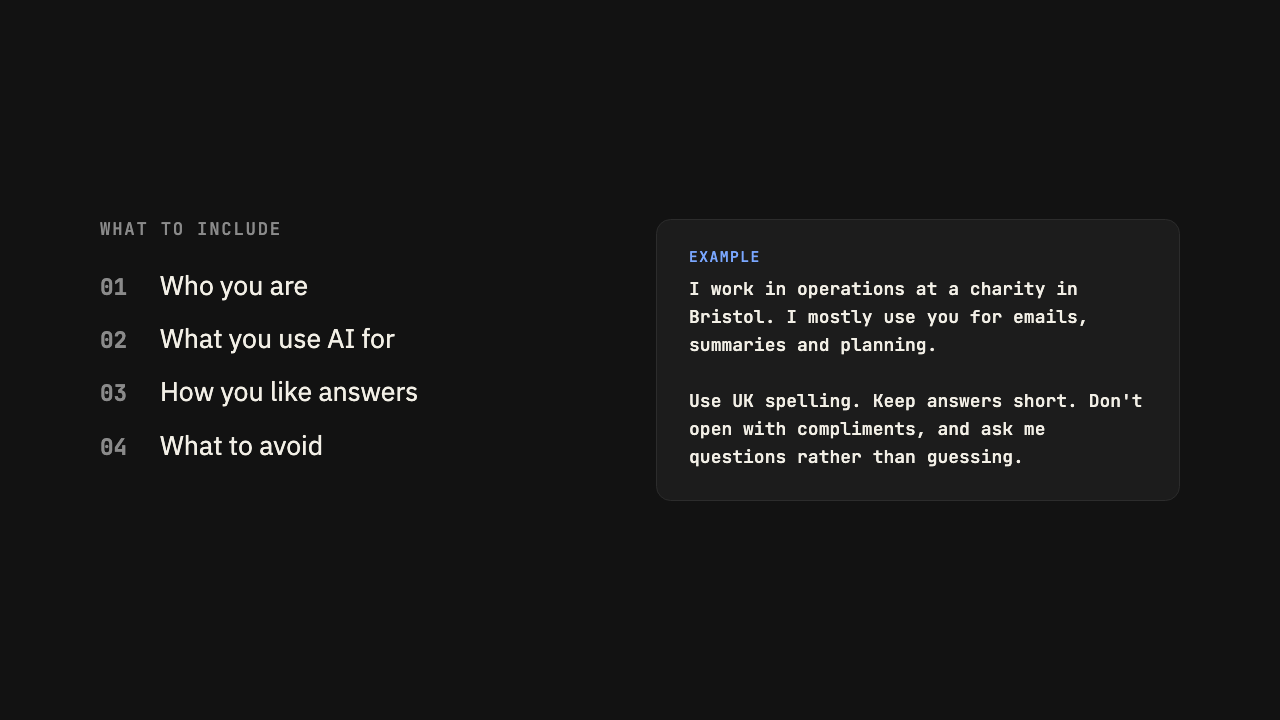
Keep instructions short and specific. A few lines that you would actually say to a person beat a long list of rules. Here is an example you can adapt:
I'm an account manager at a small design agency. This project is for monthly reports to our client, Northfield Homes.

Reports go to their marketing director, who is busy and not technical. Keep language plain, lead with results, and use short headed sections.

Use UK spelling. Never invent figures: if a number is missing, ask me for it.
Check it worked
Start a new chat in the project and ask, “What do you know about this project and how I like to work?” It should summarise your instructions and mention your files. If something is missing or wrong, edit the instructions and try again.
Take it to your AI
Copy this into Claude or ChatGPT to get started
This prompt sums up the guide and asks your AI to walk you through it using your own work. Paste it in, then answer its questions.
I want to set up a project in this AI tool so you remember the background to my work and I stop repeating myself in every chat.

Interview me one question at a time about my role, the work I do most often, who I usually write for and how I like answers presented. Then draft the project instructions for me to paste in, keeping them under 200 words, and suggest which documents would be worth adding as files.
Written for Claude and ChatGPT, Oct 2026
Was this guide useful?
Thanks, that helps us decide what to improve.